



In this post, I would like to show you a fun project – automating google voice search using Arquillian Graphene.
This is 3rd post in our Arquillian Graphene series. Please read below posts if you have not already.
- Arquillian Graphene set up for Blackbox automated testing.
- Advanced Page Objects Pattern design using Page Fragments
Aim:
Aim of this project is to see if google voice search does really work properly 🙂 & to learn Graphene Fluent Waiting API.
Test steps:
- Go to www.google.com
- Then, Click on the microphone image in the search box. Wait for google to start listening.
- Once it is ready to start listening, use some talking library to speak the given text
- Once google stops listening, it will convert that to text and search
- Verify if google has understood correctly
Talking Java:
In order to implement this project, first i need a library which can speak the given text. I had already used this library for one of my projects before. So I decided to reuse the same.
import com.sun.speech.freetts.VoiceManager;

public class SpeakUtil {

	static com.sun.speech.freetts.Voice systemVoice = null;

	public static void allocate(){
		systemVoice = VoiceManager.getInstance().getVoice("kevin16");
		systemVoice.allocate();
	}

	public static void speak(String text){
		systemVoice.speak(text);
	}

	public static void deallocate(){
		systemVoice.deallocate();
	}
}
Google Search Widget:
As part of this project, I would be modifying the existing page fragment we had created for google search widget. [the existing google search widget class details are here]
- Identify the microphone element property in the google search text box & click on it.
- Once it is clicked, google takes some time to start listening. Here we use Graphene Fluent Waiting Api. [Say no to Thread.sleep]
- We add another method to wait for google to stop listening once the talking lib has spoken the text.
- We need one more method to return the text from the search text box – this the text google understood.
After implementing all the required methods, our class will look like this
public class GoogleSearchWidget {

	@FindBy(id="gsri_ok0")
	private WebElement microphone;

	@FindBy(name="q")
	private WebElement searchBox;

	@FindBy(name="btnG")
	private WebElement searchButton;

	public void searchFor(String searchString){
		searchBox.clear();

		//Google makes ajax calls during search
		int length = searchString.length();
		searchBox.sendKeys(searchString.substring(0, length-1));
		Graphene.guardAjax(searchBox).sendKeys(searchString.substring(length-1));
	}

	public void search(){
		Graphene.guardAjax(searchButton).click();
	}

	public void startListening(){

		//wait for microphone
		Graphene.waitGui()
				.until()
				.element(this.microphone)
				.is()
				.present();

		microphone.click();

		//wait for big microphone image to appear
		//this is when google starts listening
		Graphene.waitGui()
				.until()
				.element(By.id("spchb"))
				.is()
				.present();
	}

	public void stopListening(){

		//wait for the microphone image to hide
		//at this point google will stop listening and start its search
		Graphene.waitGui()
				.until()
				.element(By.id("spchb"))
				.is().not()
				.visible();
	}

	public String getVoiceSearchText(){

		Graphene.waitGui()
				.until()
				.element(this.searchBox)
				.is()
				.visible();

		return this.searchBox.getAttribute("value");
	}
}
Chrome Options:
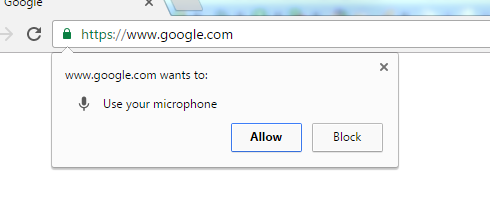
We need to add below chrome options while launching chrome – so that chrome can use the system microphone. Otherwise, it will show a popup to ‘Allow’ which will prevent us from automating the feature. We can add this in the arquillian.xml as shown here.

   <extension qualifier="webdriver">
      	<property name="browser">chrome</property>
      	<property name="chromeDriverBinary">path/to/chromedriver</property>
      	<property name="chromeArguments">--use-fake-ui-for-media-stream</property>
   </extension>
TestNG Test:
We add a new test for this. I will pass some random text for the SpeakUtil to speak and google for search.
public class GoogleVoiceTest extends Arquillian{

	@Page
	Google google;

    @BeforeClass
    public void setup(){
    	SpeakUtil.allocate();
    }

    @Test(dataProvider = "voiceSearch")
    public void googleVoiceSearchTest(String searchText){

    	google.goTo();

		//start listening
    	google.getSearchWidget().startListening();

		//speak the given text
    	SpeakUtil.speak(searchText);

		//wait for google to stop listening
    	google.getSearchWidget().stopListening();

		//assert if google has understood correctly
    	Assert.assertEquals(searchText,
							google.getSearchWidget().getVoiceSearchText().toLowerCase());
    }

    @DataProvider(name = "voiceSearch")
    public static Object[][] voiceSearchTestData() {

	   //test data for google voice test
       return new Object[][] {
    		   {"weather today"},
    		   {"show me the direction for atlanta"},
    		   {"magnificent 7 show timings"},
    		   {"will it rain tomorrow"},
    		   {"arquillian graphene"}
       };
    }

    @AfterClass
    public void deallocate(){
    	SpeakUtil.deallocate();
    }
}
Results:
Google was able to understand mostly what talking lib spoke. However It could not get ‘arquillian graphene’ 🙁


Demo:
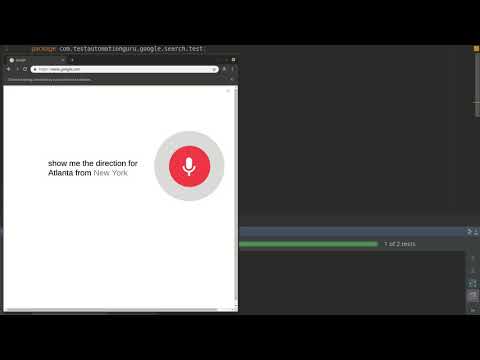
Summary:
It was really fun to automate this feature – activating microphone, letting the talking lib talk and google trying to listen etc. If you are trying to do this, ensure that no one is around 🙂 & Looks like I already got my family members irritated by running this test again and again!! So I will stop this now!
All these scripts are available in github.
Happy Testing 🙂
